What’s new in the latest release of our MCP connector
We are rolling out a substantially renewed version of the connection between your AI assistant and Exact Online. It is the same connection, considerably smarter: you can now ask it to close the month, and a report comes back that you tick off line by line.
What stays the same is the foundation: you work in your own administration, through your own access, and nothing is posted without your approval. What changes is how much the connection already does for you before you start looking yourself.
The month-end close as an instruction
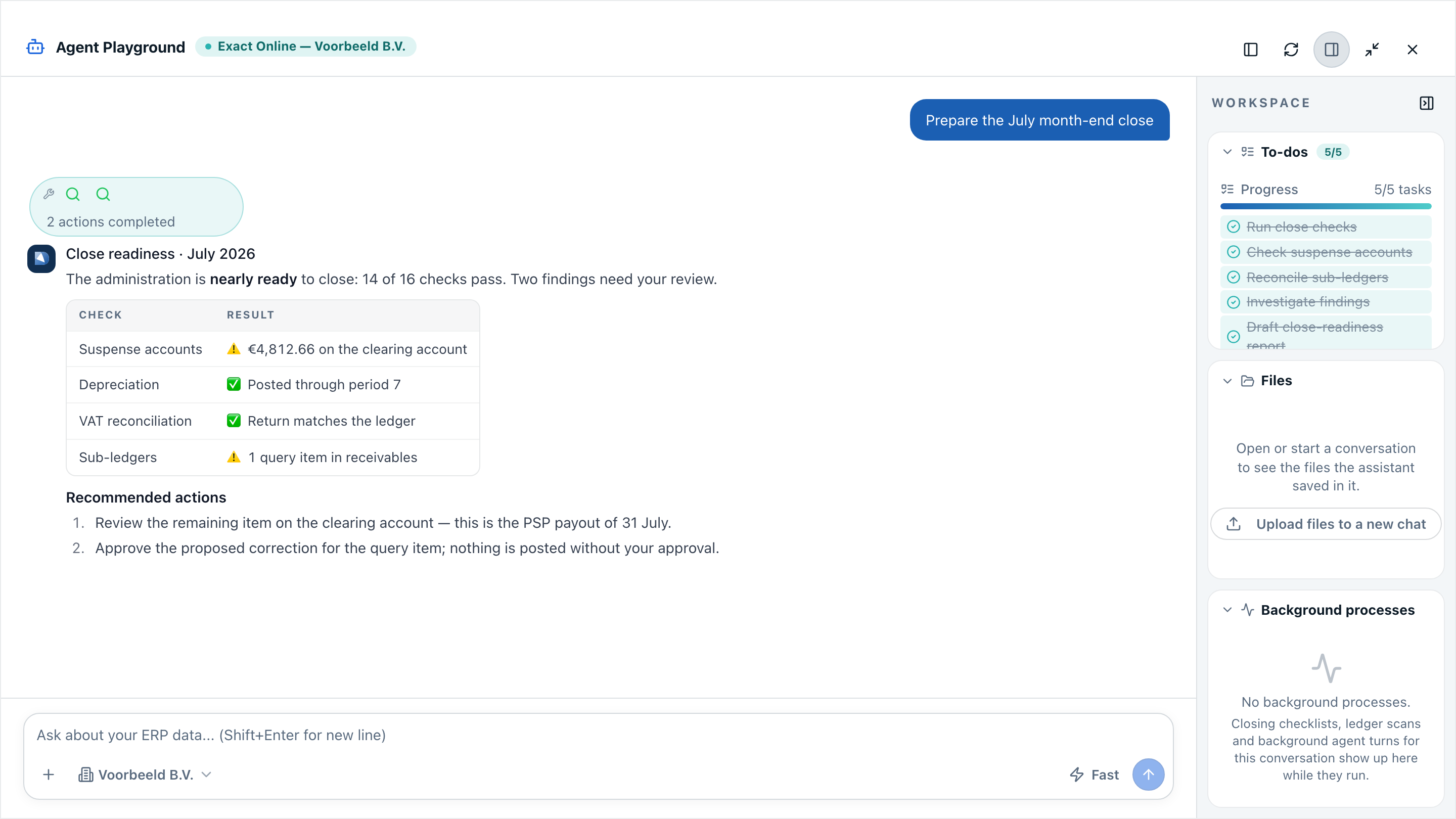
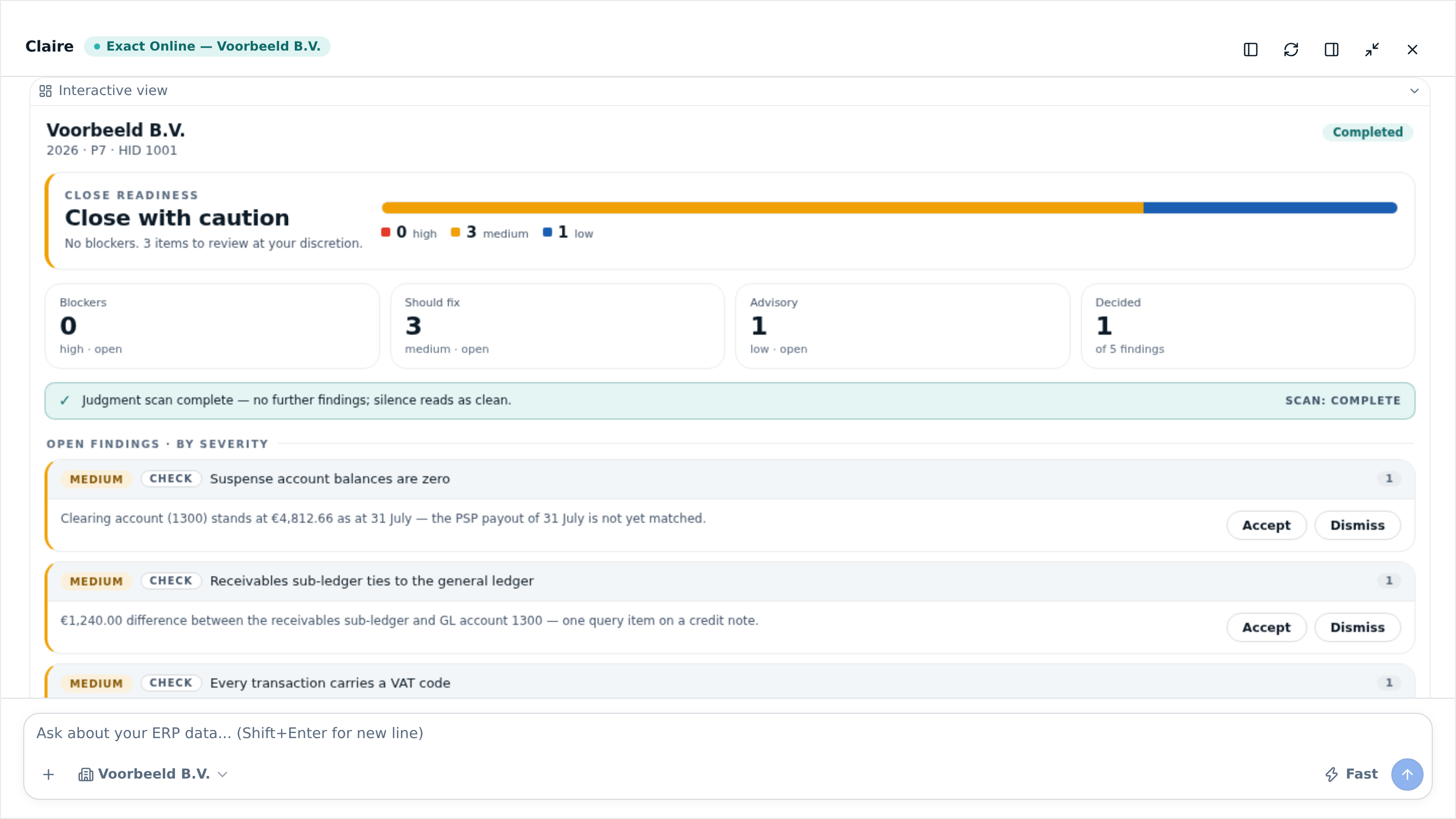
The biggest addition is a closing agent. You ask your assistant to close the month, and a series of checks runs automatically: does the opening balance tie to last year, are the suspense accounts at zero, do the receivables and payables sub-ledgers tie to the general ledger, do the bank and cash balances match, does every entry carry a VAT code, and has depreciation been posted.
The result is not a wall of text but a report, as shown above. At the top sits the verdict: ready, ready with caution, or not yet ready — and why. Below it the findings are sorted by severity, each with the concrete item attached: which amount, on which account, as at when. Per finding you accept it or dismiss it, and what you have handled drops out of the open list.
"The difference with a checklist is that the checks have already run by the time you look. You assess the exceptions instead of first having to find them."
A substantiated cashflow forecast
There is also a forecasting agent for liquidity. It builds the forecast from what is in the administration: open receivables and payables with their due dates, actual payment behaviour from history, and your budget in Exact for the periods still to come.
The outcome is not a single line but a band, measured against how well the same method did on your own figures in the past. So you see not only what the expectation is, but how firm that expectation is. The calculation runs in the background, so you can carry on working meanwhile.
A renewed chat
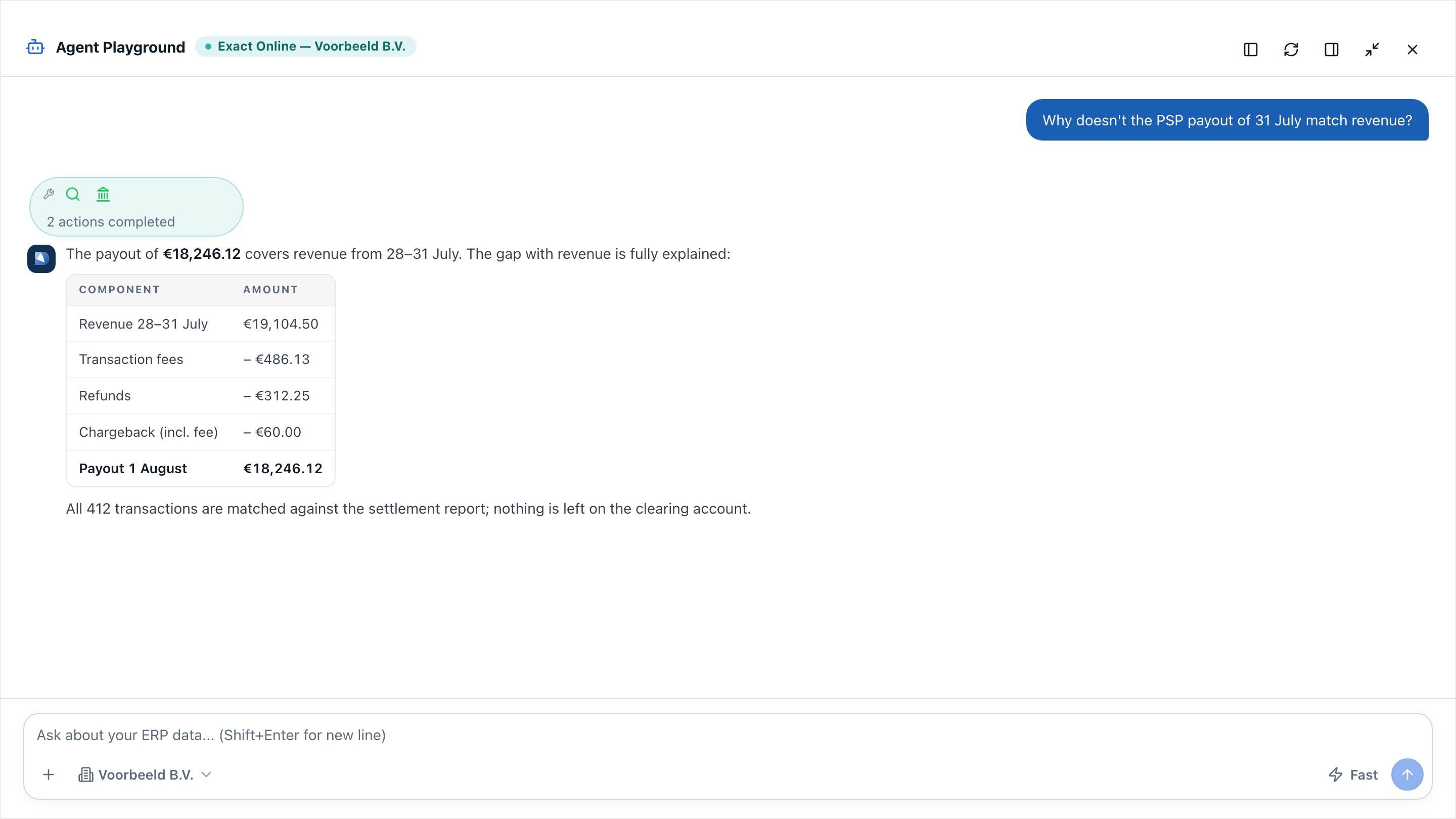
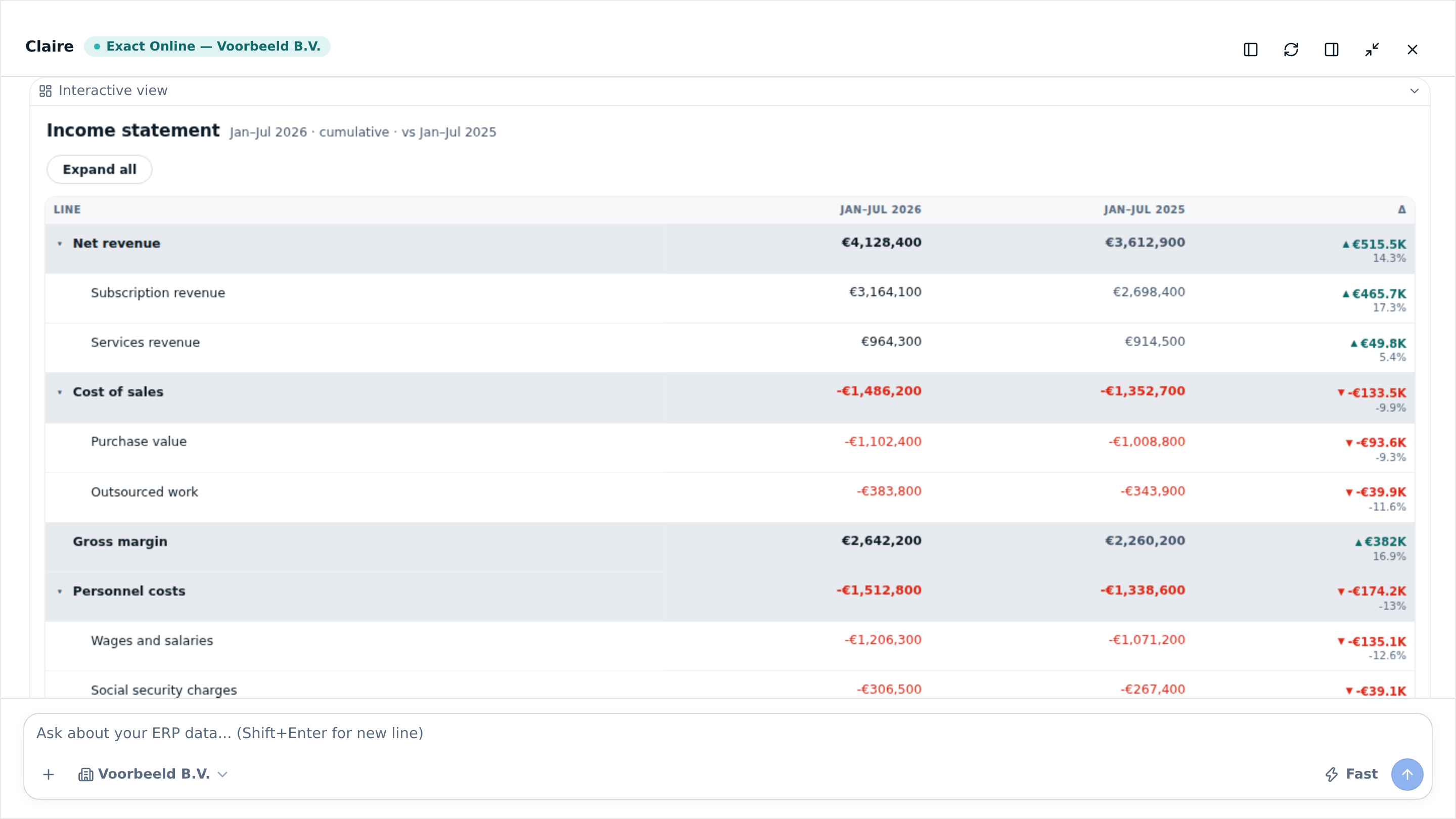
Answers now arrive live, with the overviews alongside them rather than underneath. A financial report appears as an expandable table, an ageing analysis as bars per bucket, KPIs as cards, and the close report as the overview above. You expand a line to see what sits underneath it, or drill through to the GL accounts, without asking the question again.
- Voice in and out. Dictate your question and have the answer read back, handy when your hands are busy elsewhere.
- Drag files in. Drop a bank statement or a spreadsheet into the conversation and ask about it straight away.
- Control over the conversation. Stop an answer in progress, edit your question and resend it, or have the same answer regenerated.
- Searchable history. Conversations get a title automatically and are grouped by date, so you can find what you asked last month.
Reporting that makes the comparison you need
Reporting has gained the comparisons people actually ask for. You can set actuals against this year’s budget instead of only against last year. You can request a rolling year — the twelve periods through the period you name — for the rolling series a management report wants.
And you can request a rolling forecast: the closed periods are actuals, the rest of the financial year is filled from the budget, so you have a full-year picture. Period and year-to-date sit side by side in one report, with actual, comparison and variance for both the month and the year so far.
More to decide per connection
You now set per connection which tools are switched on. If your team only works with reporting and the close, you switch the rest off — for your assistant they then simply do not exist, and the choice gets shorter and sharper.
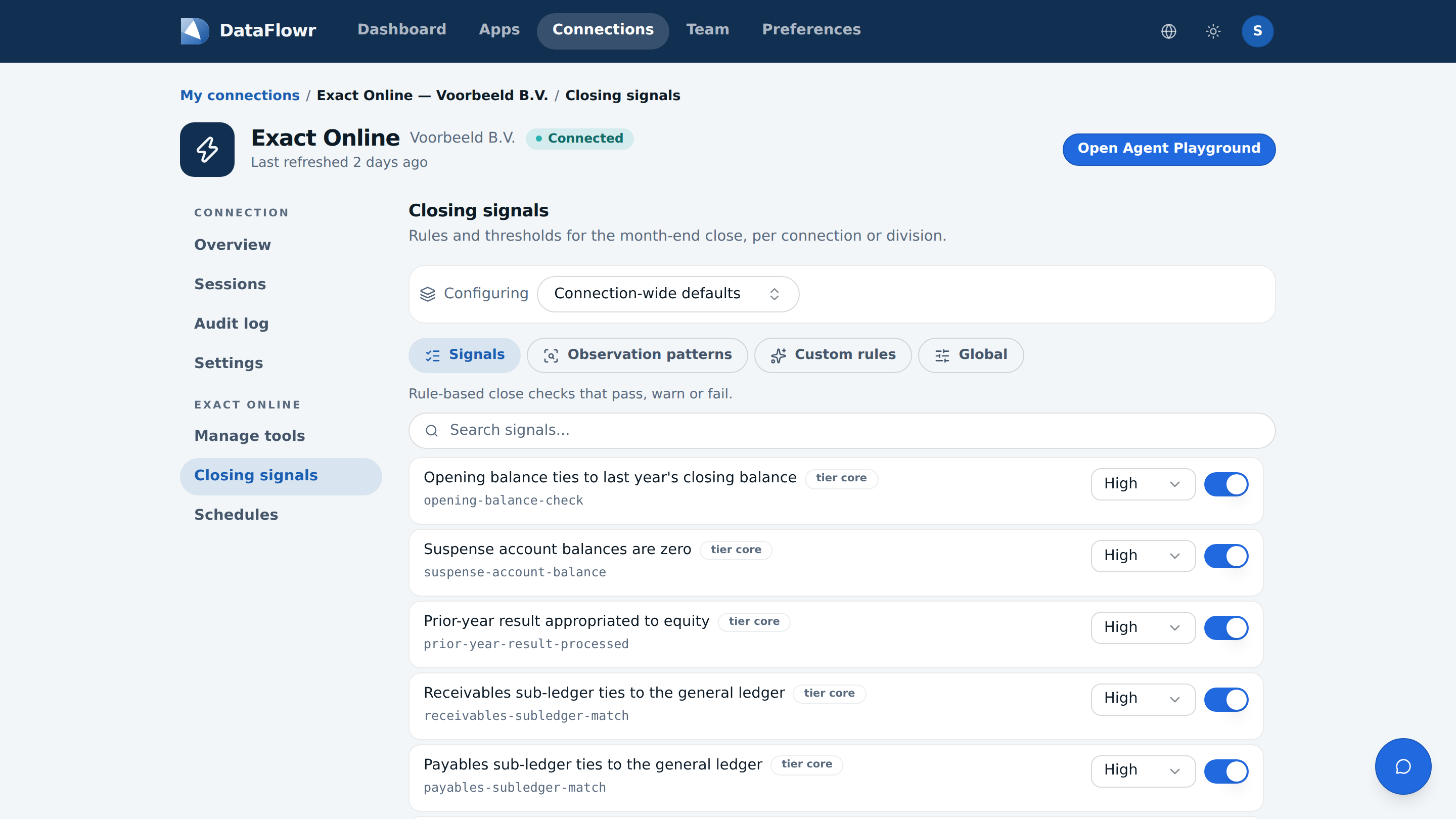
The same goes for the close checks themselves. Under “Closing signals” you find the full list of checks with their explanations, and you set per administration which ones apply and how heavily they weigh: blocking, for review, or purely informative. What is a blocker at one entity is a point of attention at another.
The assistant of your choice, through one address
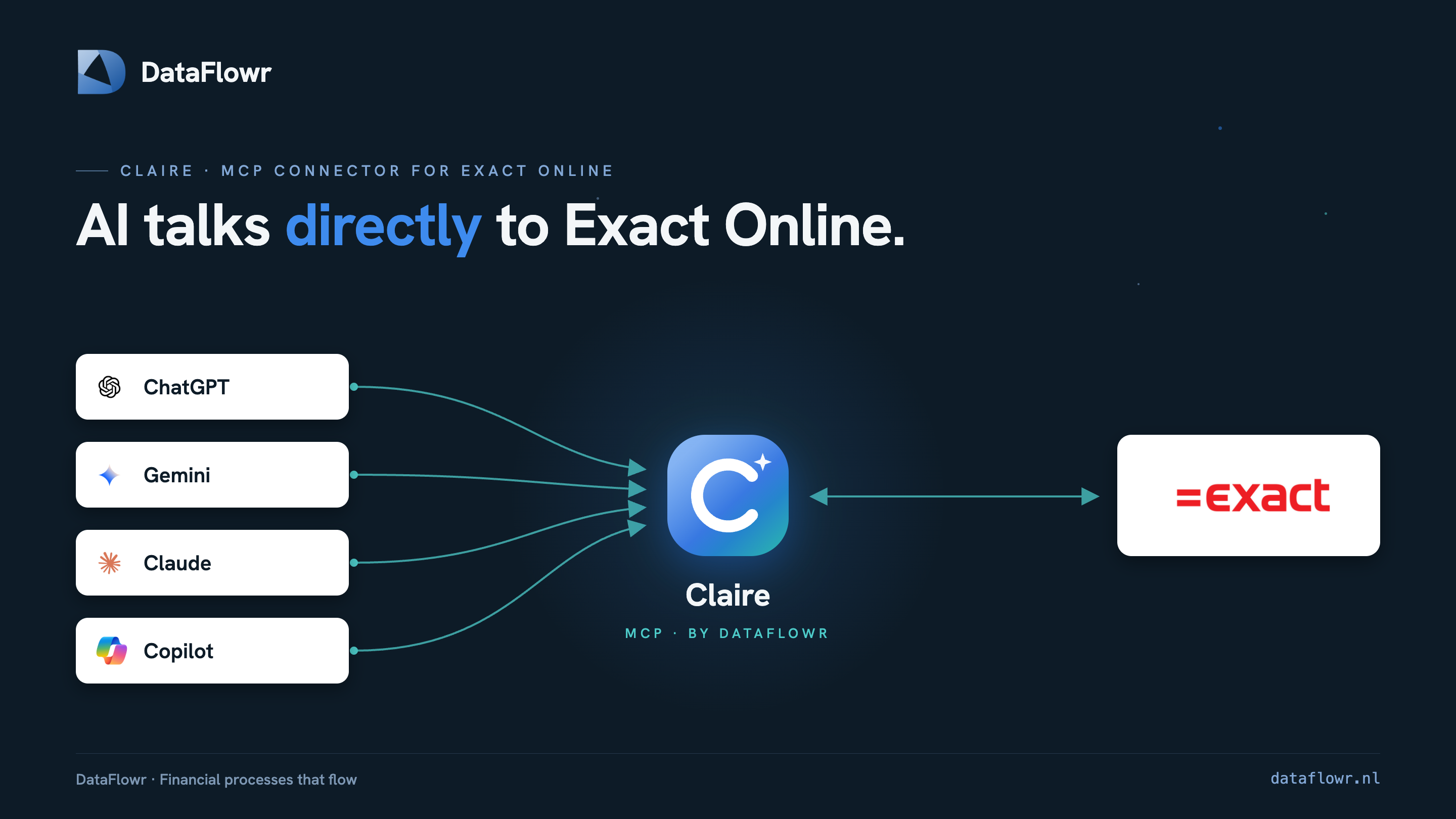
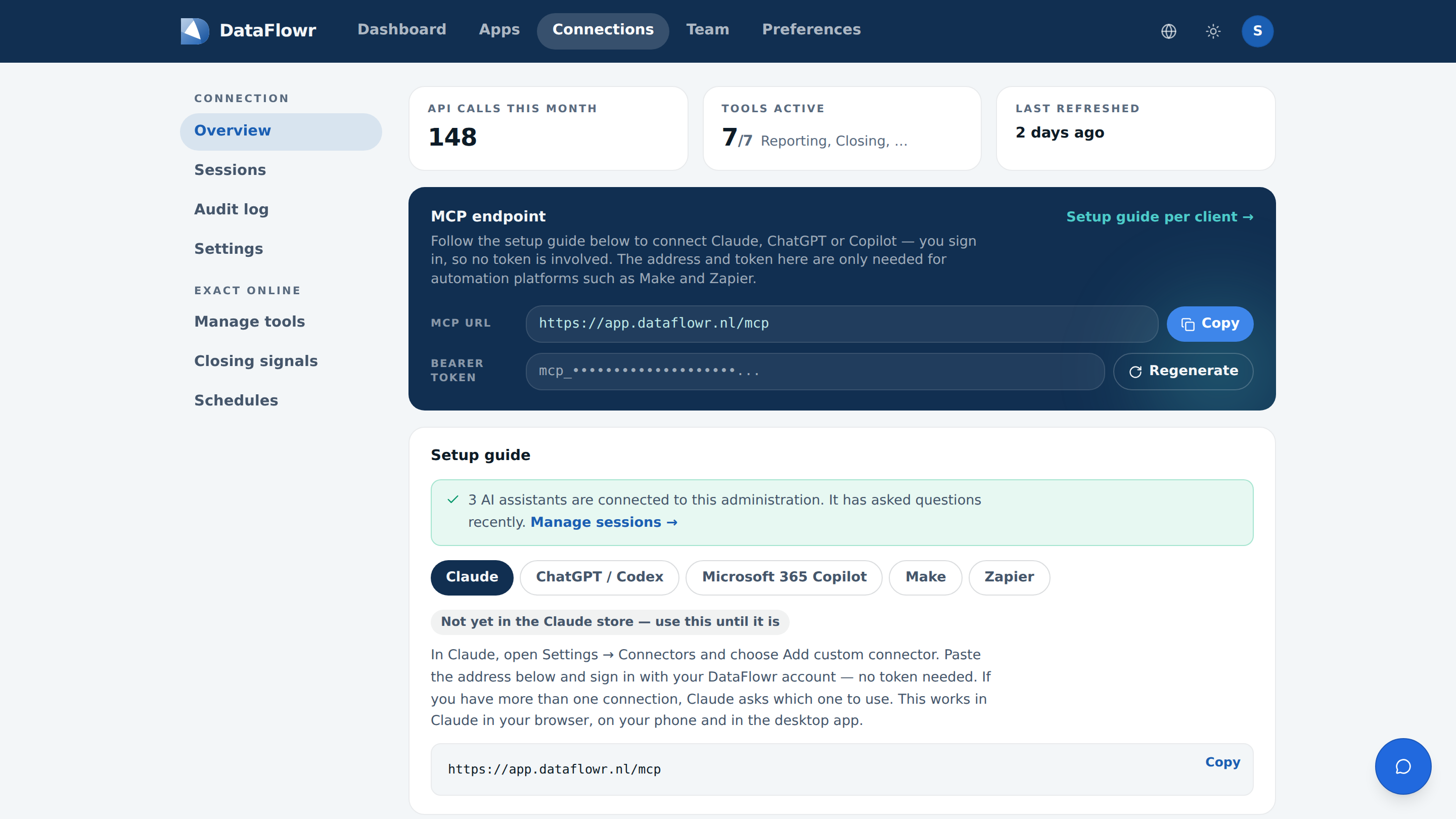
The connection now has one address, whichever assistant you use and however many administrations you have. Which administration sits behind it is decided when you connect: with one there is nothing to choose; with several you are asked which it should be. And you can point an assistant at a different administration later.
The connection page carries a worked-out route per client: Claude, ChatGPT and Codex, Microsoft 365 Copilot, and for automation Make and Zapier. Those routes genuinely differ — Microsoft 365 Copilot, for instance, cannot add a connection by address at all and therefore gets a ready-made package. Listings have been submitted to the three assistants’ vendor marketplaces; as soon as one is approved, that card turns into a single button to it.
Visibility into what happens
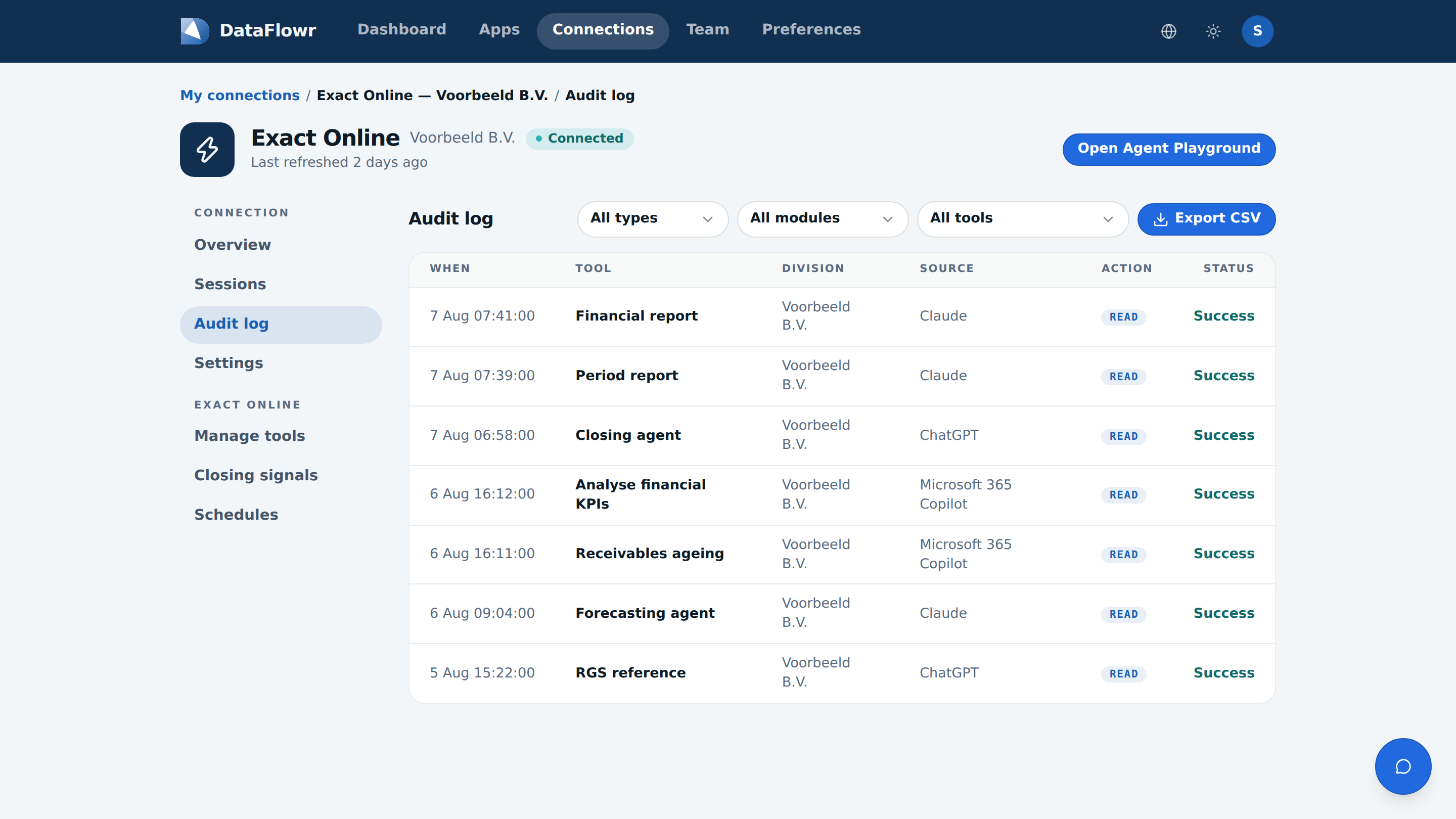
The audit log now names the assistant behind every call. Not “a report was fetched”, but “Claude fetched a financial report for Example Ltd at 07:41”. The log filters by type, module and tool, and exports to CSV — useful when your accountant wants to see what was queried.
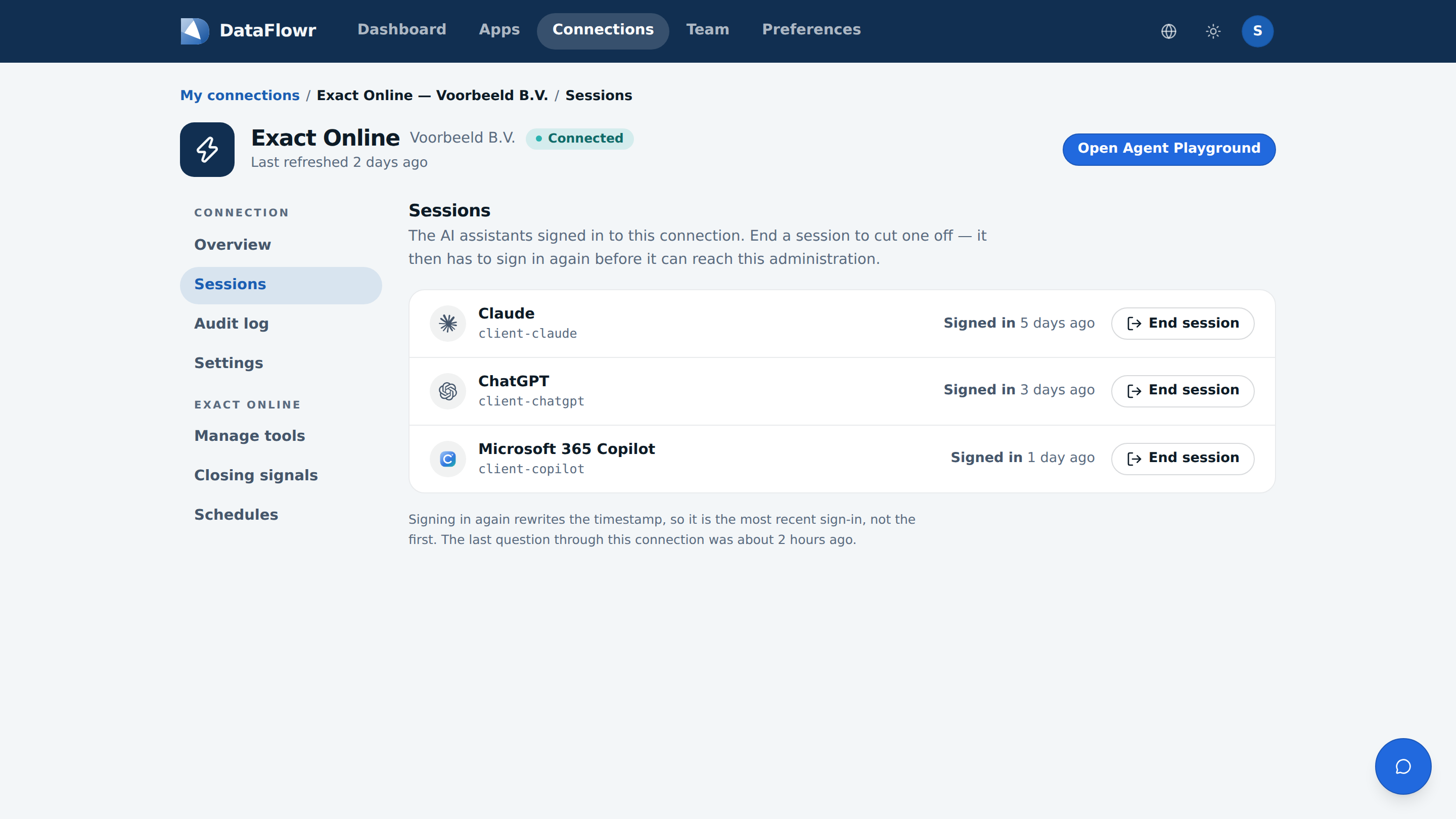
There is also a sessions overview: which assistants are signed in to this connection and when they last were, with a button per assistant to end the session. Someone leaving the organisation, or an assistant you no longer use, is taken off there.
New around it
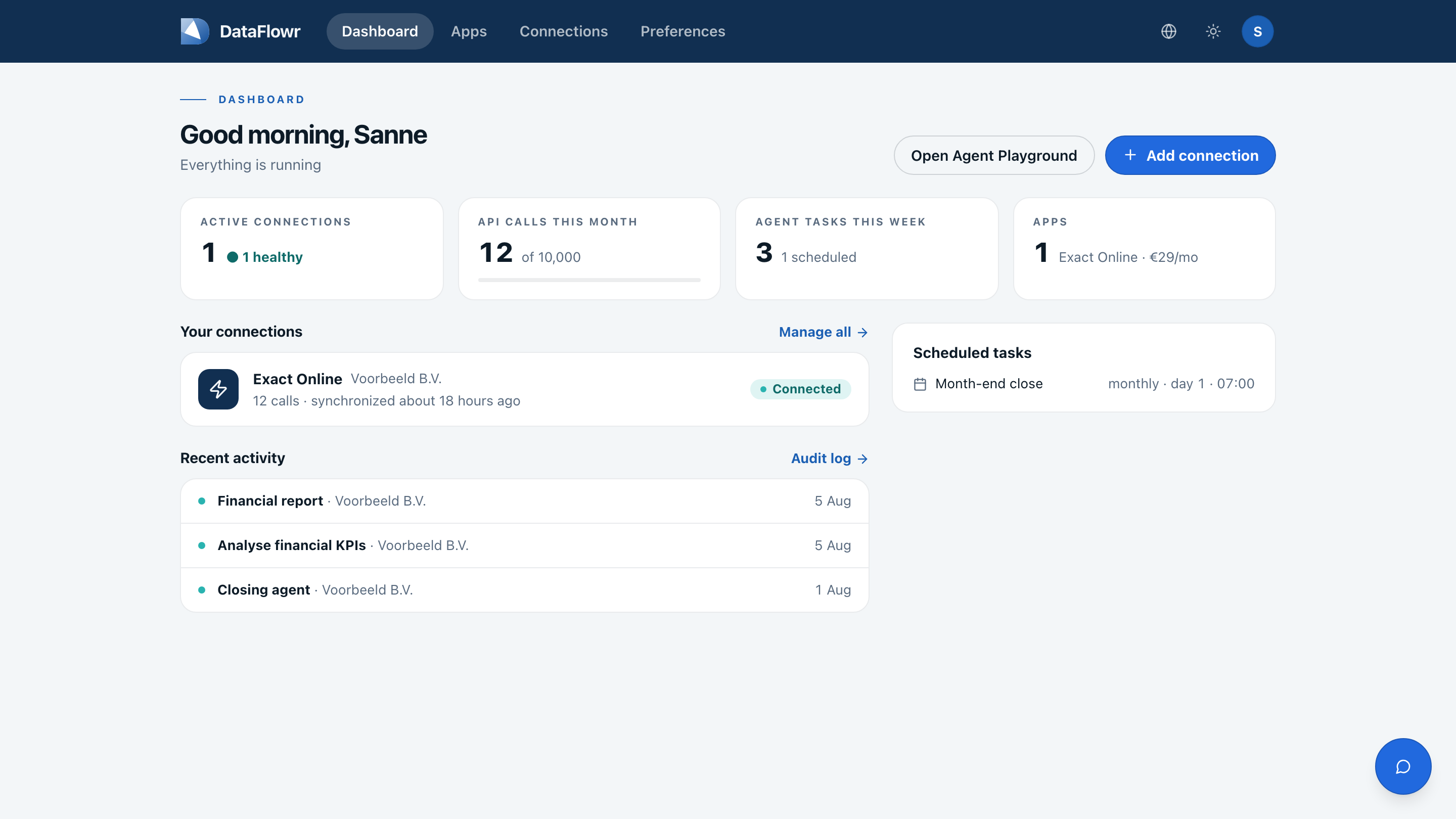
Two things have appeared outside the connection itself. There is an iOS app, so you can ask a question or follow a close run while out of the office. And the web environment has a renewed interface: every connection now has its own page with overview, sessions, audit log, tools, closing signals and schedules, instead of everything on one list.
One action: create your account again
There is one thing you need to do yourself. We have moved to a new sign-in system, so that we can build our own sign-in screen rather than borrowing someone else’s. Because of that, you need to create your account once more.
Use the same email address as before. Everything will then be there exactly as you left it — your connections, your settings and your conversation history — and you can carry straight on. It takes a minute.
Questions about what has changed, or would you like us to set the close checks up with you on your own administration? Do get in touch; we are happy to walk through it with you.